

1. How to Apply Using the BELLEK Grant Management System (BELLEK)?
1.1 What is BELLEK?
The BELLEK Grant Management System (BELLEK) is a software application, developed by Hafıza Merkezi (Truth Justice Memory Center), that covers all processes of the Haklara Destek[1] programme and through which beneficiary organisations manage all their transactions and documents — from the application stage through the implementation period — for joint use by external experts providing support (such as independent assessors) and the Haklara Destek team. Through the BELLEK User Guide, we aim to make the application process for the Haklara Destek Programme easier. Both the application questions and the financial section of the application are prepared online through BELLEK.
BELLEK can be accessed at https://www.haklaradestek.org/bellek/.
1.2 Key Concepts
BELLEK was designed as a process-based piece of software. This means that every piece of information recorded using this software also has a process to be followed. Accordingly, with a few exceptions, the records entered must always be forwarded to the next step, so that the person who will process the information entered is notified.

BELLEK Screen 1
On forms where information is entered as part of a process, you can see the steps in a row similar to the one shown above. The names and number of the steps, and the text of the command to move to the next step — shown in this image as Complete Application >> — may differ from this image depending on the transaction being carried out (e.g. Save, Add, Add Budget Item, Send Forward).
NOTE: Since the forms in BELLEK do not fit conveniently onto phone screens, it is recommended that you use a desktop computer or a high-resolution tablet.
1.3 Scope
At this stage of the programme, you will proceed by filling in the application form, budget, and expected income tabs. In this document, we explain step by step, through BELLEK screens, how the application is prepared. We will publish a second BELLEK guide covering implementation-period processes such as narrative and financial reporting, to be used during the implementation period. This guide has been prepared with a focus on the application process.
2. How is a Haklara Destek Application Prepared Using the BELLEK System?
2.1 How to Fill in the Application Form
2.1.1 Creating a User and Password
The first thing we need to do to start the application is to go to https://www.haklaradestek.org/bellek/ and register the organisation and the contact person for the application in the BELLEK system. You will see a screen like the following:
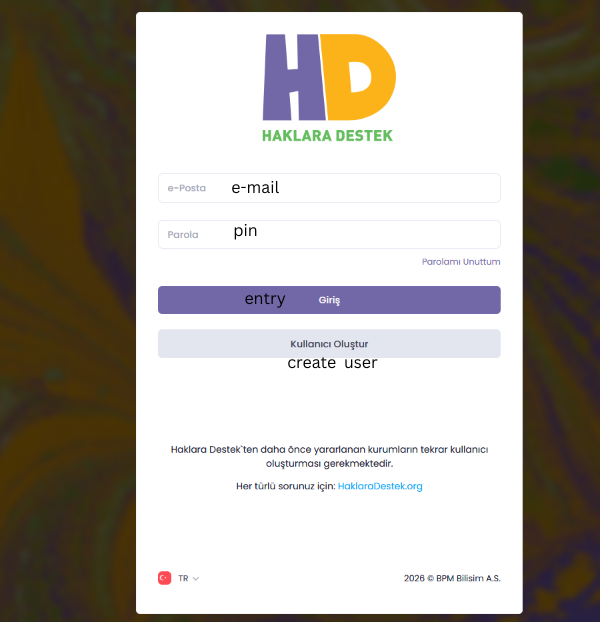
BELLEK Screen 2
On this screen, at first entry, all users — including beneficiaries of the previous Haklara Destek programme — need to create a user in the system by clicking the Create User button. When you click Create User, you will see a screen like the following:
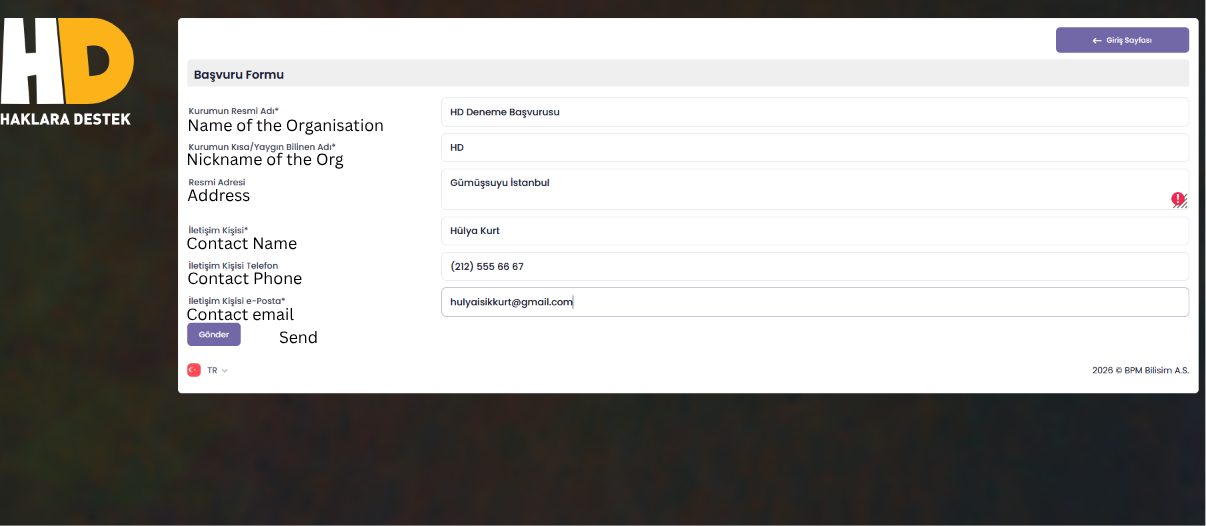
BELLEK Screen 3
After entering the requested information on this screen, you must click the “Send” button. A verification code will be sent by BELLEK to the contact person’s email address.
You must enter this code on the screen below:
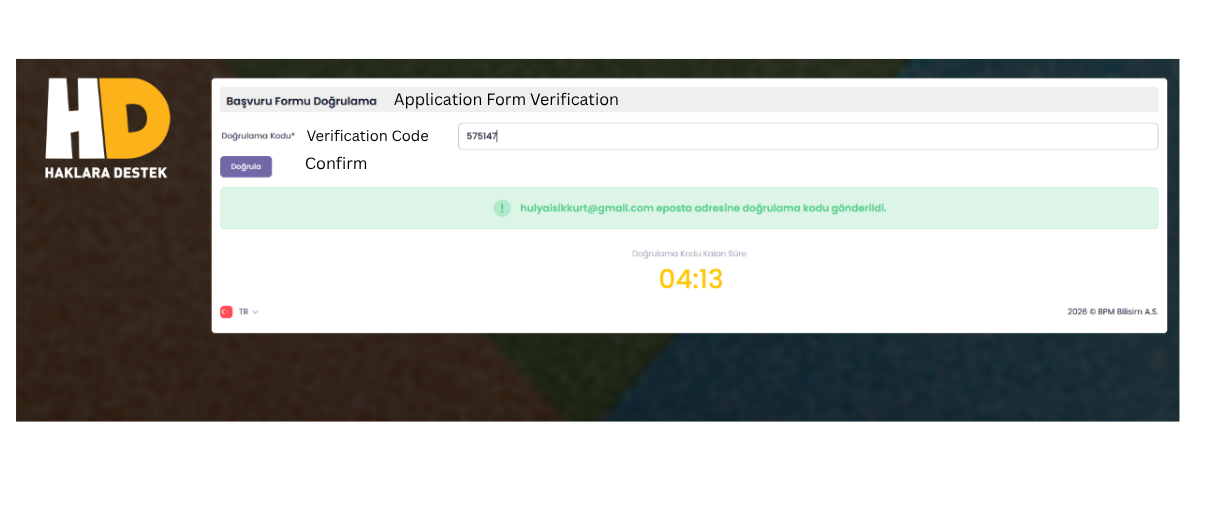
BELLEK Screen 4
Once your email has been verified, you can log in to the BELLEK system with the new password you created and start preparing your application.
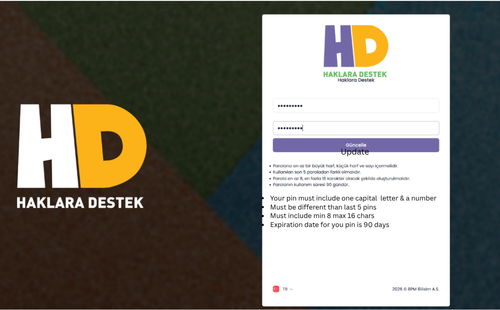
BELLEK Screen 5
2.1.2 Application
The first step of the application process is the section where basic information about the organisation is provided. The questions are shown in the screen below. First, you should complete any unanswered questions in the 1.1 Contact Information section and click the ‘Save’ button.
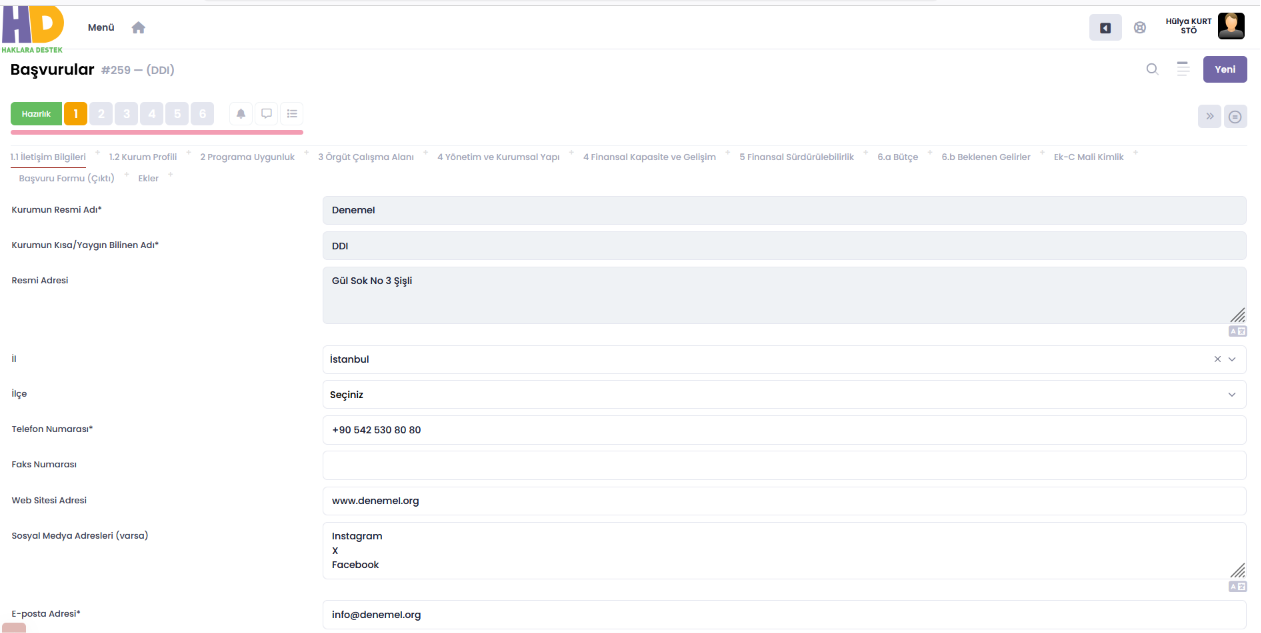
BELLEK Screen 6
“Screen asks for input: Name of the CSO, Short name, Address, City, Town, Phone #, Facsmile #, Web address, Social Media Addresses, email address”
The organisation’s application consists of answering the application form questions, entering the budget and expected income information, and uploading the requested documents to the system. While preparing your application, we expect the content to be prepared in line with what is described in the Haklara Destek Programme Application Guidelines.
In BELLEK, the application questions are located under tabs such as 1.1 Contact Information, 1.2 Organisation Profile, and 2. Programme Eligibility.
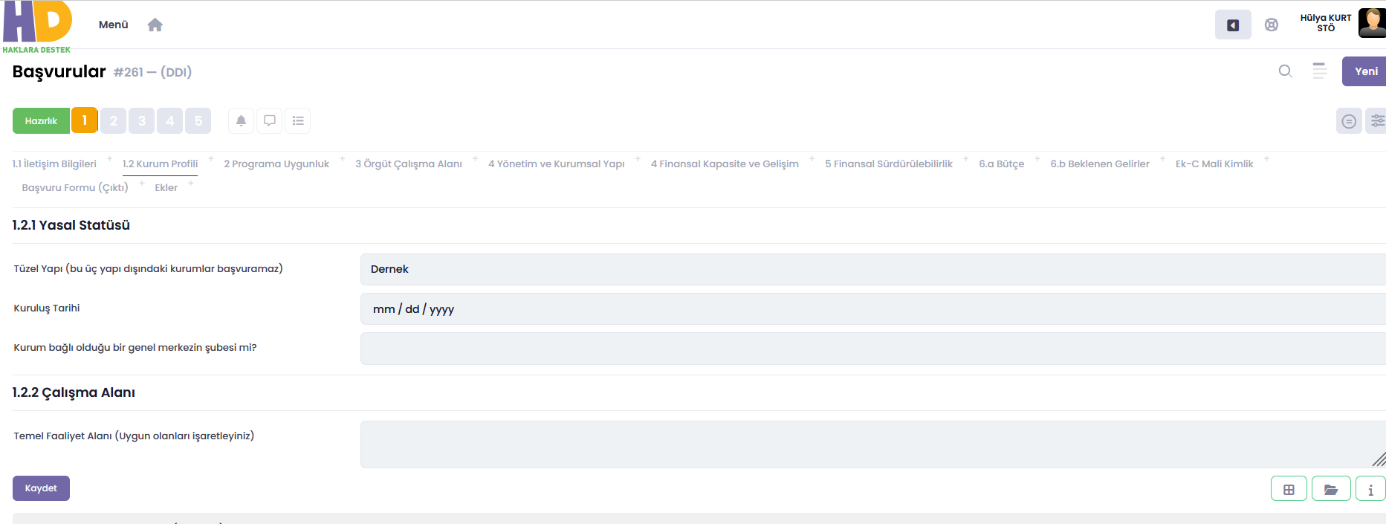
BELLEK Screen 7
“Screen asks for input: Legal status of the CSO, Establishment Date, Branch or Headquarters? Work Area”
You must answer the questions in each tab in full and click the ‘Save’ button; this saves the information you have entered to the system. If you do not click ‘Save’, the information you have entered may not be retained. We recommend that you save and check the fields you have completed.
2.1.3 Error Reporting / Changing Password / Advancing the Process
On the screen below, the “Username” is shown in the top right corner, and to its left is the Error/Suggestion reporting tool (the button shown with a wrench icon). You can report an Error/Suggestion by clicking this button. If you experience a problem while using the software, or if you think of a feature that could be improved, you can let us know using the Error/Suggestion reporting tool.

BELLEK Screen 8
The reporting tool automatically takes a screenshot of the screen you are on while you write your message and sends it to us. This way, we can better understand which step you were on when you felt the need to contact us.
If you wish to change your password for any reason, you can do so from the user menu.
As explained above, BELLEK is a process-based system: you need to save the information you enter, and, once the entire application is complete, advance the process so that we can review the application. After filling in and checking all sections in the first step, you can send your application to the second step by clicking the ‘Complete Application’ button. Once an application has been advanced to the second step, it is no longer possible to make changes to it. If you receive an error message, you must make the necessary corrections and click the same button again. Applications left incomplete at the first step are not considered complete and are not taken forward for assessment.
2.2 How to Prepare the Financial Application
Once the application form has been completed, you need to prepare the financial section of the application. The 6.a Budget and 6.b Expected Income tabs in BELLEK are the sections that must be completed for the financial application. The financial application is prepared in Euros.
2.2.1 How to Prepare the Budget
When you open the Budget tab, you can start creating the budget by clicking the ‘New Item’ button in the bottom-left corner of the screen. Before preparing the budget, you must enter the organisation’s 2024 income, requested in question 4.7 of the application form, since the total grant your organisation can receive from this programme is determined based on this income. Detailed information on this is provided in the Haklara Destek Programme Application Guidelines.
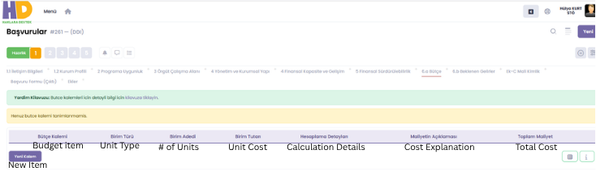
BELLEK Screen 9
When you click the “New Item” button in the Budget tab, a screen like the following appears:
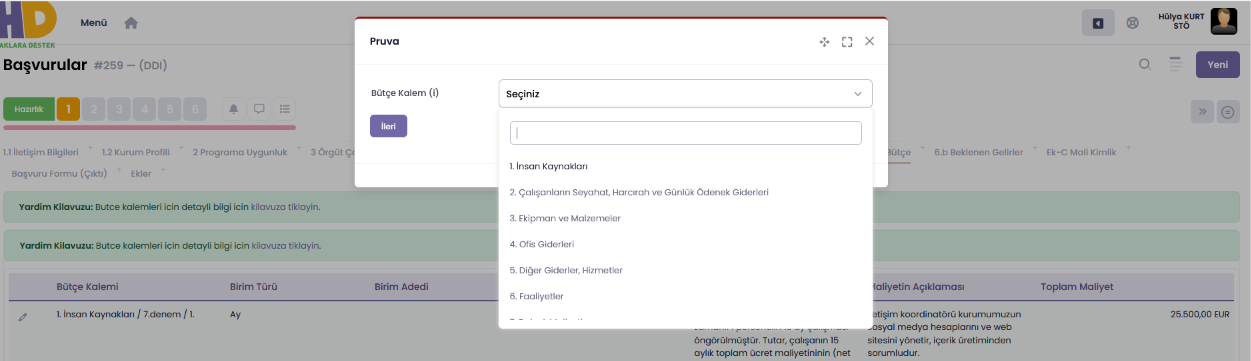
BELLEK Screen 10
“Screen asks for selection of the budget item; HR or expenses etc ”
On the screen that appears, select one of the main budget headings you wish to work on and click the “Next” button.
Once a main budget item has been selected, screens for entering information appear, which vary depending on the budget item:
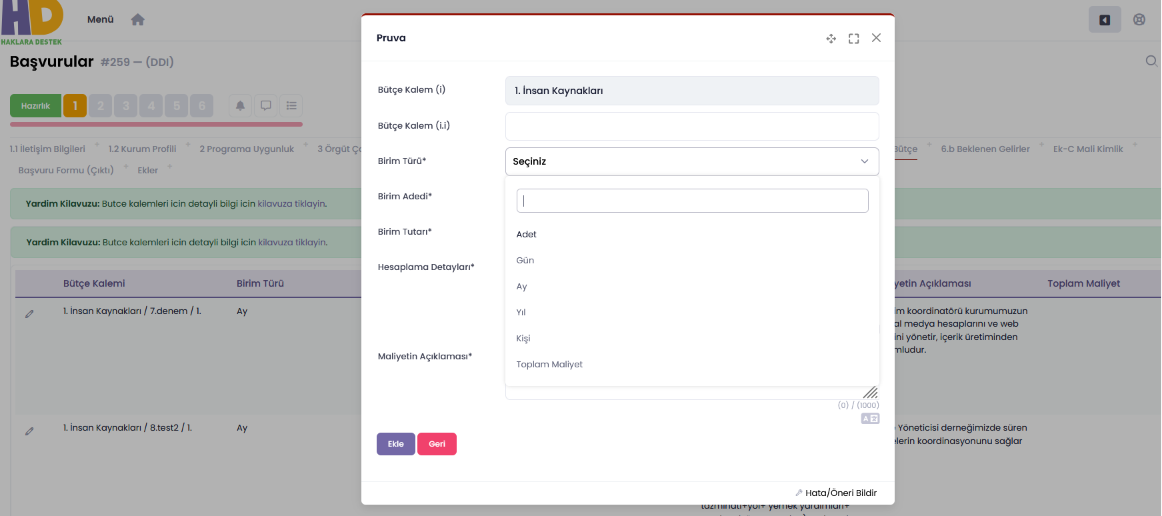
BELLEK Screen 11
“Screen asks for input: For budget item Human Resources selection required for unit type, quantity, unit cost, calculation explanation and Explanation of Cost”
On this screen, you can add the sub-headings of the budget item you selected and enter all the detailed information relating to that budget item.
If the main budget item you selected in the Budget Item (i) field is one of the headings “2. Travel, Per Diem and Daily Allowance Expenses”, “3. Equipment and Supplies”, “4. Office Expenses”, or “5. Other Expenses, Services”, the Budget Item (i.i) field will automatically offer the relevant sub-headings.
For example:
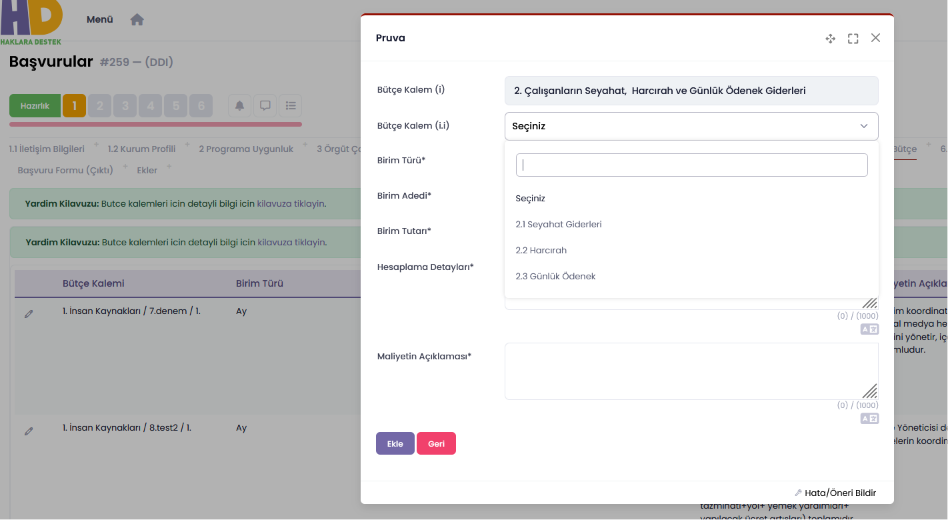
BELLEK Screen 12
“Screen asks for input: For budget item Travel and per diem and Daily allowances”
In this case, you must select one of the sub-headings offered to you. If none of the relevant sub-items covers the cost you wish to add, and there is an ‘Other’ option among the sub-headings, you can select that option and enter the new budget item you wish to add for your application.
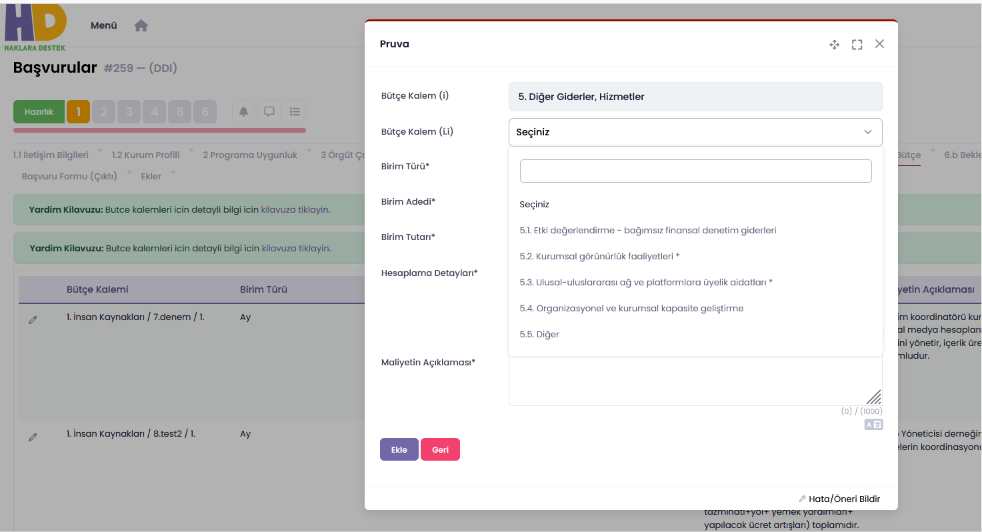
BELLEK Screen 13
Budget items are divided into two types: those for which a unit cost is entered and those for which a total cost is entered. The difference between them relates to the details entered.
2.2.1.1 Unit Costs
The budget items for which unit costs — i.e. the number of units, the unit type, and the unit amount — are entered in detail are as follows:
1. Human Resources; 3. Equipment and Supplies; the 4.1. Rent and 4.4. Other sub-headings under 4. Office Expenses; and the 5.1. Impact assessment/independent financial audit expenses, 5.4. Organisational and institutional capacity development, and 5.5. Other sub-headings under 5. Other Expenses, Services.
Under the 6. Activities heading, budget items for which either a unit cost or a total cost is entered may be included, depending on the task being carried out. Entries for activity expenses are made according to the nature of the budget item.
Below you can find some examples prepared for budget items where the number of units, unit type and unit amount need to be entered. After selecting the relevant budget item and filling in the required fields, you must click the “Add” button. Once this information is entered, the total cost of the budget item is automatically calculated by the BELLEK system. You must also write the calculation details and the cost explanation for each budget item.
Through this process, we create the budget item and record all of its financial details. If we forget anything while creating a budget item, it is always possible to add new items, delete existing ones, and make updates.
Example relating to the Human Resources budget item:
If you have selected 1. Human Resources in the Budget Item (i) field,
In the Budget Item (i.i) field, write the position of the staff member employed, or to be employed, by your organisation for whom you will request grant funding for staff costs — e.g. project manager, communications coordinator. Enter the monthly cost you have calculated for this staff member (in Euros) and the total number of months. Fill in the Calculation Details and Cost Explanation fields and click the ‘Add’ button. You can review the budget item entry screen below:
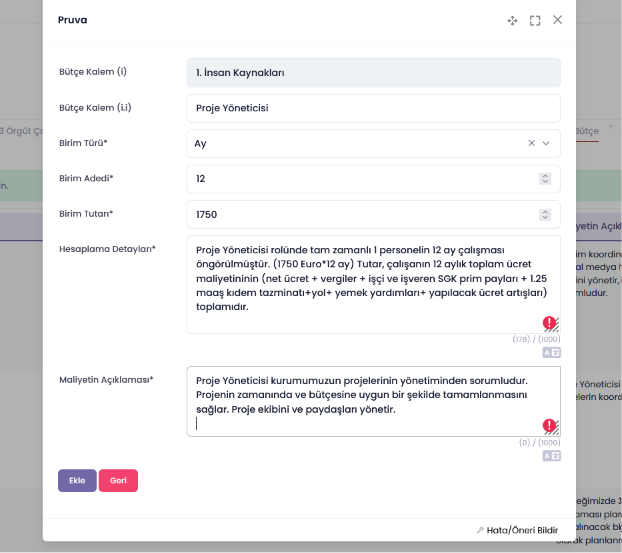
BELLEK Screen 14
“A sample input for human resources: Calculation Details and Cost Explanation:
Calculation Details: A full Project Coordinator position is foreseen for 12 months (EUR 1750*12). The amount is the total of the employee’s 12-month wage cost (net wage + taxes + employee and employer SGK premium shares + 1.25 months’ severance pay + transport + meal allowances + planned wage increases).
Cost Explanation: The Project Manager is responsible for managing our organization’s projects. They ensure that projects are completed on time and within budget. They manage the project team and stakeholders.”
The budget items below are items that have been prepared by entering unit costs.
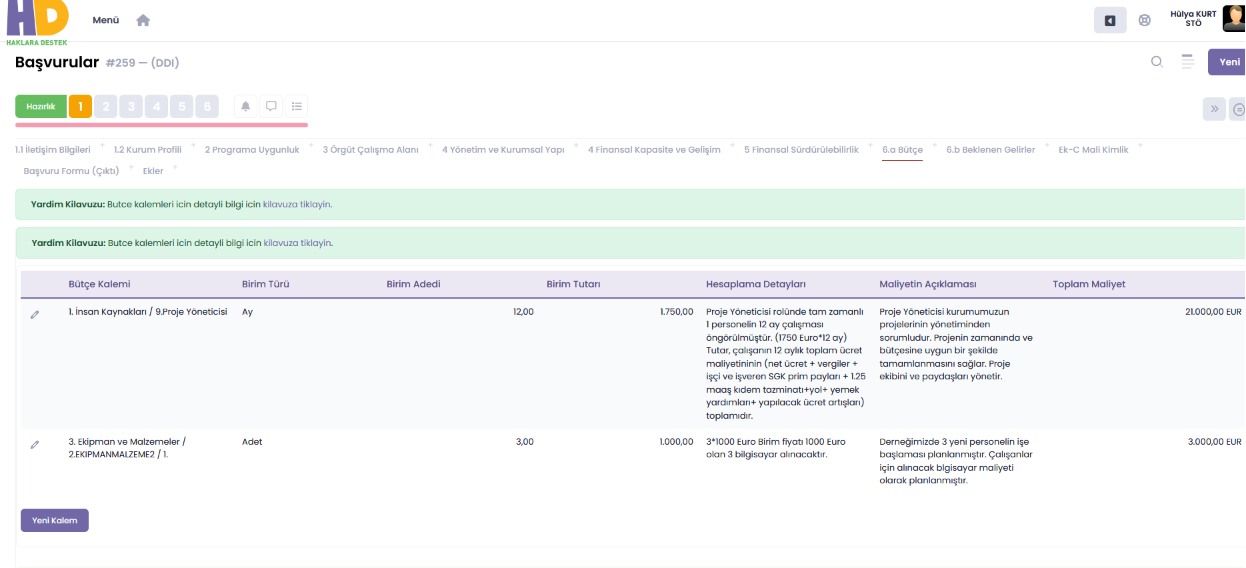
BELLEK Screen 15
2.2.1.2 Total Costs
For some of the sub-items within the budget, a “Total Cost” may be specified. When adding budget items with a total cost, the unit type must be selected as “Total Cost” and the number of units must be entered as one.
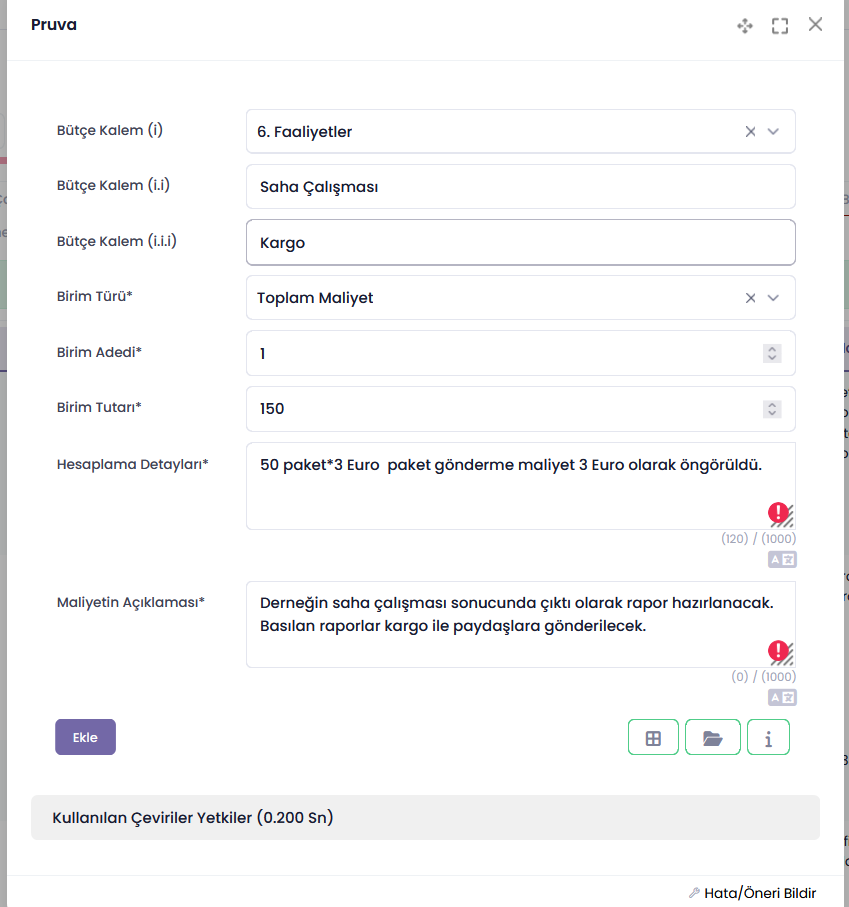
BELLEK Screen 16
“A sample input for the activities:
Calculation Details: 50 packages* 3 Euro price – unit price is asseumed as 3 Euros.
Cost Explanation: Report will be printed and posted to the stakeholders.”
The budget items for which it is sufficient to state the total cost, in order to avoid difficulties in estimating the number of units, are as follows:
All expenditure items under the 2. Travel, Per Diem and Daily Allowance Expenses heading; the 4.2 Consumables and 4.3 Postage/Courier sub-headings under 4. Office Expenses; the 5.2 Institutional visibility activities and 5.3 National/international network and platform membership fees sub-headings under 5. Other Expenses, Services; and the 7. Indirect Costs – Fixed Office Costs (Electricity, heating, water, dues, telecommunications) budget heading.
If any of the above budget items relating to activities is to be entered under the 6. Activities heading, it is added as a total cost. Activity budget items are explained in the next section.
Below you can find some examples prepared for budget items for which you will enter a total cost. After selecting the relevant budget item and filling in the required fields, you must click the ‘Save’ button. When specifying a total cost, you need to state the estimated expenditure items and your calculation logic.

BELLEK Screen 17
When determining amounts for all budget items, please pay attention to VAT costs. VAT has been determined to be an ineligible cost. For this reason, only calculations that do not reflect the VAT amount should be included in the budget.
You must fill in the explanation fields for all items. If the explanation field is left blank, BELLEK will not let you proceed.
2.2.1.3 Activity Budgets
The 6. Activities budget item requires somewhat more planning than the other budget items. When preparing the activity budget, the first step should be to think of the activities you will be budgeting for as a whole and to identify the expenditure items required to carry out that activity.
When adding budget items relating to a planned activity to the budget, you must first write the name of the relevant activity (Budget Item (i.i)) and then the sub-budget items relating to that activity (Budget Item (i.i.i)). For example, let’s assume that your organisation has decided to hold a conference on Mother Tongue Rights. The Mother Tongue Rights Conference is an activity. You must divide the expenditures you will make to hold the conference into categories:
- Travel expenses for participants*,
- Technical Services,
- Consultancy,
- Venue rental and refreshments,
and you must budget all these different categories under different headings, within the same activity.
You must add these 4 items separately in BELLEK as Budget Item (i.i.i) under the Mother Tongue Rights Conference heading. An example illustrating this process is given below:
Let us now look at the steps you will take to add this activity in BELLEK:
The first step is to select New Item and, there, select the 6. Activities option.
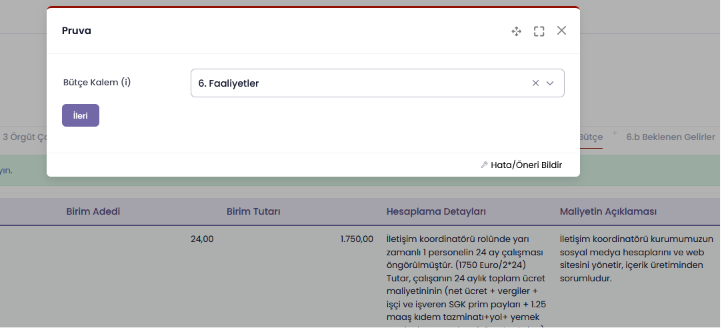
BELLEK Screen 18
After selecting 6. Activities, the screen that appears is as follows:
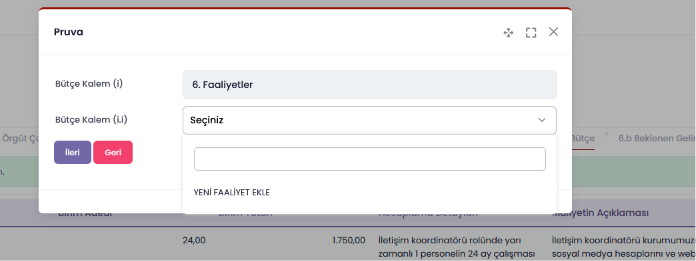
BELLEK Screen 19
Since we have not yet added any activity, we need to proceed with the Add New Activity option.
Now, to enter the budget items for the Mother Tongue Rights Conference activity we have prepared into the BELLEK system, we need to fill in the screen below:
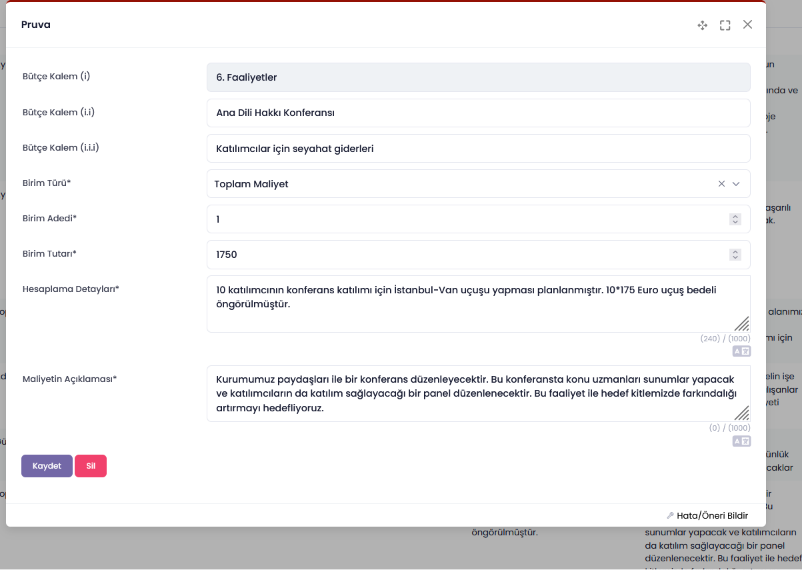
BELLEK Screen 20
By filling in and saving this screen, we have entered the first of the 4 sub-budget items we prepared.
If it is a budget item for which a total cost is to be entered in relation to activities, as can be seen in the example, you can select the unit type as “Total Cost”, set the number of units to 1, and enter the total cost as the unit amount.
For every new activity you add, you should think in this way, break down the costs required to carry out that activity by category, and prepare the budget items accordingly.
To enter the second budget item of the activity, we repeat the process of adding an activity budget item and select the Mother Tongue Rights Conference as the activity:
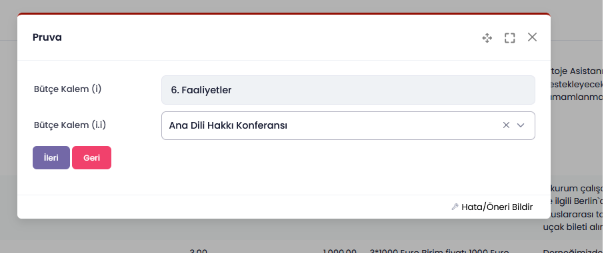
BELLEK Screen 21
By making this selection, we can add the other items of the Mother Tongue Rights Conference one by one.
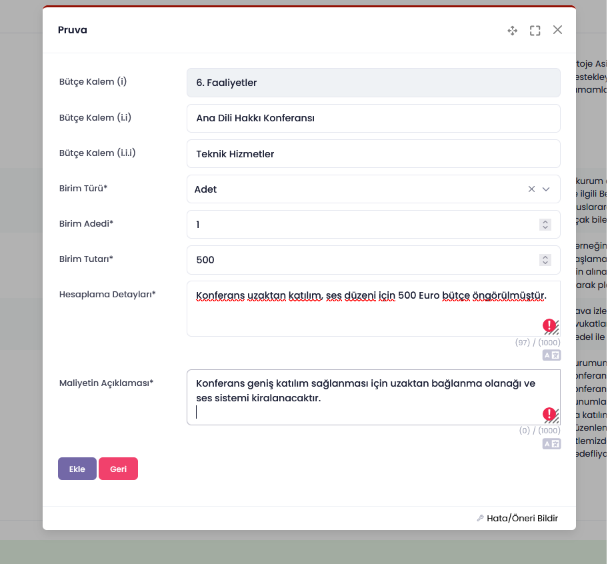
BELLEK Screen 22
Technical Services is a budget item for which a unit cost is entered. Since 1 technical service will be procured, we proceeded by selecting the unit and writing the necessary details in the explanation fields.
Budget items with either a unit cost or a total cost may be included under Activities. You must prepare the activity budget items in line with the general budget rules. In the activity example given, a total cost must be entered for the Travel expenses for participants and Venue rental and refreshments items, and detailed explanations must be written in the Calculation Details and Cost Explanation fields. For the Consultancy and Technical Services items, the unit type, number of units and unit amounts must be entered in detail, and the explanations must be completed. Budget items must describe the content of the planned activity.
As this is an institutional grant, we recommend that you use it mainly to cover your operational expenses. However, we also support organisations receiving funding for activities they have prioritised. When adding more than one activity, if we have previously added an activity budget, the following screen appears:
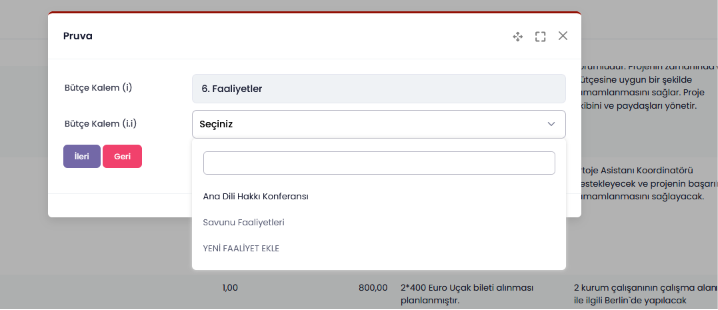
BELLEK Screen 23
On this screen, we can select from among the activities we have previously added and add new sub-budget items to them, or define a new activity.
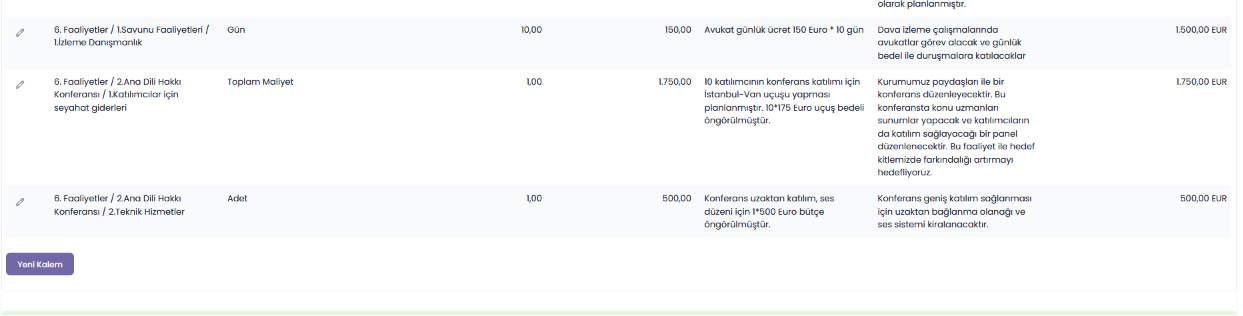
BELLEK Screen 24
2.2.1.4 Indirect Costs – Fixed Office Costs
In this programme, the fixed office costs arrangement will be applied differently from previous programmes, both in terms of budgeting and reporting. The changes made are intended to make planning and reporting easier. You may plan indirect costs of up to 4% of the total grant amount. The budget item is added in the BELLEK system as follows:
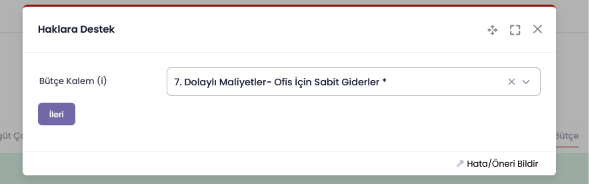
BELLEK Screen 25
Select the budget item and click the continue button. The Indirect Costs – Fixed office costs budget item is one for which a total cost is entered. After selecting the unit type as Total Cost and entering 1 as the number of units, enter the amount you have calculated — which must not exceed 4% of the total grant amount — together with the required explanations, and click the add button.
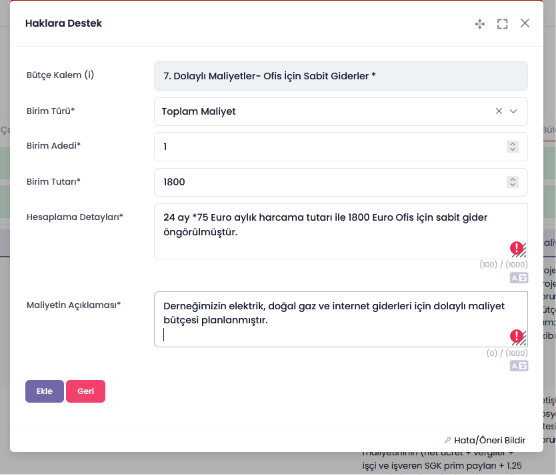
BELLEK Screen 26y
“Example is for indirect cost, fixed Office costs. Calculation details: Monthly spending is assumed as 75 Euros for 24 months.
Cost Explanation: Electricty, heating, telecommunications cost included.”
If the 4% of the grant amount is exceeded, you will not be able to complete the application; at the completion stage, the BELLEK system will alert you to your shortcomings. You can correct the deficiencies and errors indicated and then click the Complete Application button.
Below you can see a sample warning screen relating to the deficiencies of an application:
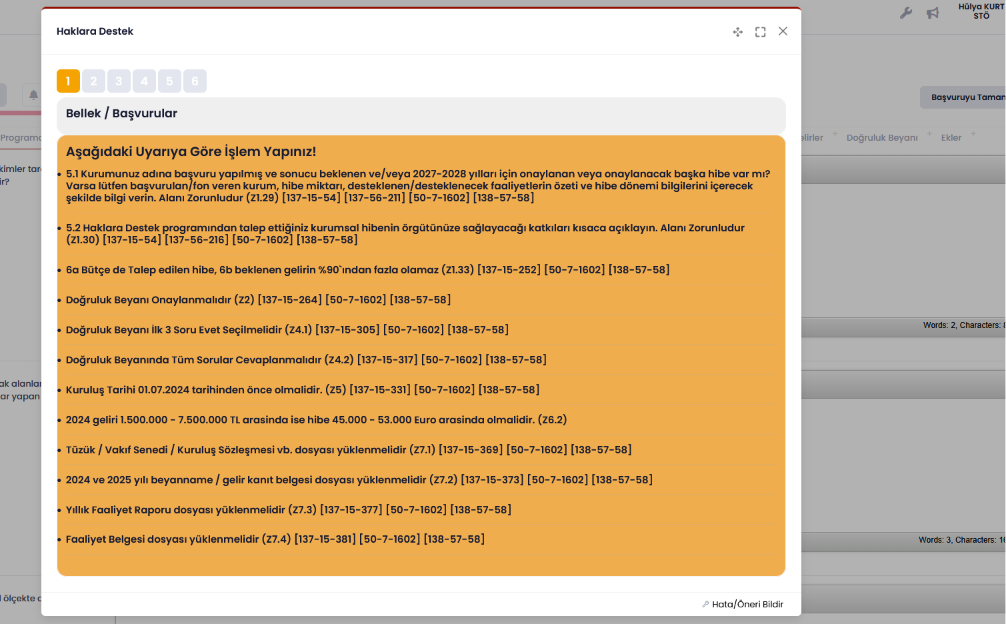
BELLEK Screen 27
“There is a list of controls to complete the application. In this example there are multiple errors ‘establishment date is incorrect, budget is prepared for incorrect amount of grant, requiered documents are not uploaded etc.”
2.2.2 How to Fill in the Expected Income Tab
Finally, with regard to the budget, you need to go to the 6.b Expected Income tab and state your other anticipated sources of income for the grant period, by type of source and as a total, in Euros.
In addition to the grant amount requested from the Haklara Destek Programme, you need to state the sources of income you anticipate for the grant period. We require the grantee organisation to secure additional funding equal to at least 10% of the grant amount requested from Haklara Destek. The applicant organisation must therefore project Expected Income of at least 10% of the grant amount. For example, an organisation requesting a grant of EUR 35,000 from the Haklara Destek Programme must project income of at least EUR 3,500 during the grant period, in addition to the Haklara Destek grant.
The 6.b Expected Income table is as follows:
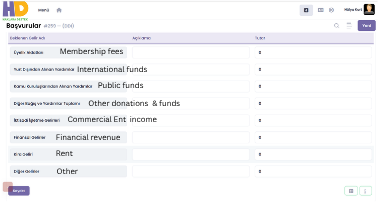
BELLEK Screen 28
After entering your organisation’s sources of income, you must save the information you have entered by clicking the save button.
Before the application is sent to the programme, BELLEK carries out the necessary checks and provides you with the relevant warnings.
Once the application form, the budget, the uploading of the requested documents and all checks have been completed, you can submit your application to the Haklara Destek Programme by clicking the ‘Proceed’ button. We would like to remind you once again that, once the form has been advanced to Step 2, you will not be able to make any changes to it.
[1] The Haklara Destek Programme (Haklara Destek) is a sub-granting scheme that aims to contribute to the development of human rights and participatory democracy in Turkey by supporting rights-based organisations and grassroots organisations. It is implemented by Hafıza Merkezi (Truth Justice Memory Center) together with the Heinrich Böll Stiftung, and is funded by the Delegation of the European Union to Turkey.